Written by Abdul Samad, the developer and sole owner of Stylzo. Last reviewed:
How to Make Fancy Text on Phone or Computer
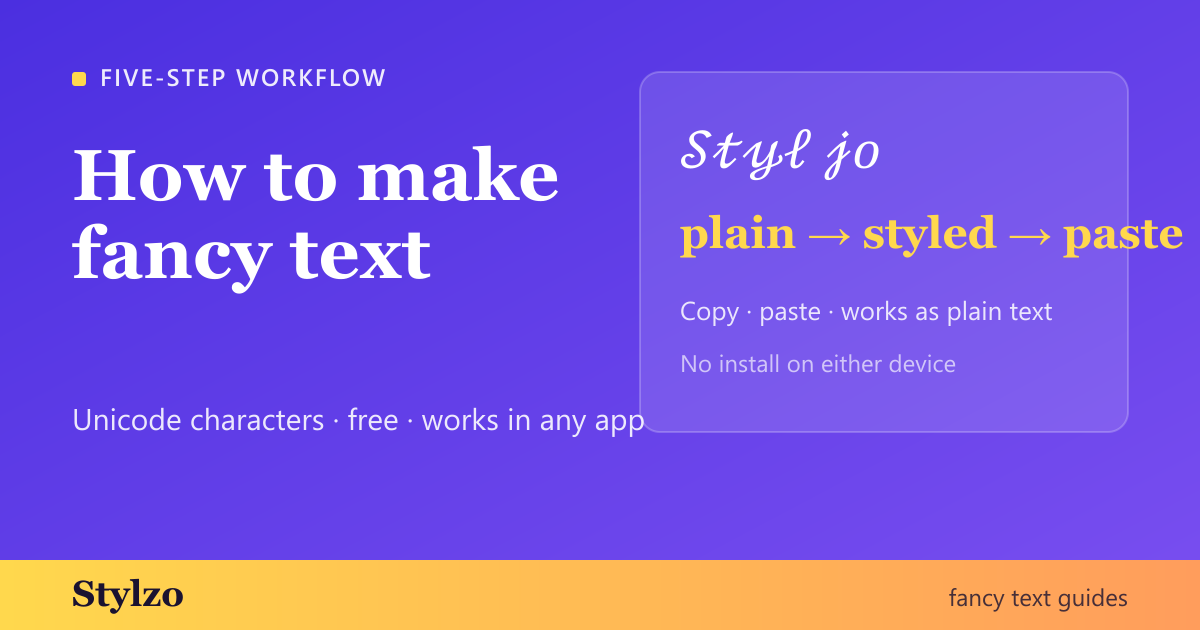
Making fancy text is not installing a font or learning an editor. It is a five-step loop: type your words, swap them into a Unicode style, copy the characters, paste them where they belong, and check the result on the device that will show it. No account, no download, and nothing to install on either end.
This guide is the whole loop in order, with the decisions that matter at each step and the fixes for the two things that go wrong: a paste that arrives plain, and a line that shows boxes.
Step 1: write the plain version first
Type the full phrase exactly as you want it to read - name, status, caption, signature. Styling is a pass over finished words, not a substitute for writing them. A short line is easier to style, easier to paste and easier to read once it lands.
Keep that plain version. It is your restore point if a field rejects the style, your fallback for search boxes and forms, and the text anyone can still type if their phone cannot draw the styled letters.
Step 2: pick one style that fits the destination
One phrase, one style. Letter-swap families - bold, cursive, small caps, monospace, fullwidth - change the alphabet without adding characters, so they travel through copy and paste cleanly. Wrapper and stacked-mark styles add decoration and sometimes extra characters; they suit a short accent, not a full sentence.
- Bold, the default strong line
𝐌𝐚𝐤𝐞 𝐢𝐭 𝐜𝐥𝐞𝐚𝐫
typed as: Make it clear - Cursive, for a name or mood
𝒟𝒶𝓎𝒹𝓇ℯ𝒶𝓂
typed as: Daydream - Small caps, for a quiet label
ɴᴏᴛᴇ
typed as: Note - Monospace, for a code-like tag
𝚝𝚊𝚐-𝟶𝟷
typed as: tag-01 - Fullwidth, for a wide aesthetic line
wide look
typed as: wide look
Step 3: copy the characters, not a picture
Fancy text here is ordinary Unicode characters, not an image and not a font file. When you copy, the clipboard carries the characters themselves. Any app that accepts text accepts them; there is no formatting to lose on the way.
If a copy button is blocked by the browser, select the styled line and use the normal copy shortcut. The result is the same characters either way.
Step 4: paste into the real field
- Open the destination - bio field, status, chat box, game name, document - and place the cursor in it.
- Paste once, then read the field immediately. The destination is where characters meet layout, limits and fonts.
- Save if the field has a save step, then reopen or refresh. Some apps cache the old value briefly.
- If the paste arrives plain, the field is transforming or restricting input: switch to a plainer letter-swap style, or use the plain version in that field and keep the styled line for display surfaces.
Step 5: test on the device that matters
Your phone may draw every glyph perfectly while a friend's older handset shows boxes. That is font coverage on their side, not damage to your text. The cheapest honest test is a second device, or a screenshot from the person who will actually read the line.
When a critical line fails, step down: bold and small caps ask for nothing unusual; enclosed tiles and heavy stacked marks ask for a lot. One plainer style that survives everywhere beats a spectacular one that boxes out half the time.
- A safe default after a failed test
𝗦𝘁𝗶𝗹𝗹 𝘄𝗼𝗿𝗸𝘀
typed as: Still works
The two failures, diagnosed
- Paste arrived plain: the destination stripped or ignored characters outside its alphabet. Re-read the field after saving; use a style that only swaps letters, or keep the plain form there.
- Boxes or question marks: the reading device has no glyph for one of the characters. Characters did not break in transit - switch style or switch device for the preview.
- Line wrapped or truncated: a length cap or a narrow column. Shorten the phrase before copying rather than hoping the field is generous.
- Looks different on each phone: expected. Rendering is chosen by the font on each device; compare side by side when it matters.
Quick tips
- Style one accent phrase, not the whole paragraph. Decoration reads as deliberate when the rest stays plain.
- Paste once and eyeball immediately - the destination is the only test that counts.
- Keep plain and styled twins of anything important in a note, organised by where each one goes.
- When in doubt, step down to bold or small caps. They survive more fields and more fonts than any decorative family.
Frequently asked questions
Do I need to install a font or an app?
No. The style is a character swap done before you copy, and the result travels as plain text. Nothing has to be installed on your device or on the reader's.
Is fancy text free to use?
Yes. The characters come from the Unicode standard rather than a licensed typeface, so the generated text is yours to use on any platform that accepts plain text.
Can I make fancy text on iPhone and Android the same way?
Yes. The workflow is identical; only the copy and paste gestures differ. Type, style, copy, paste into the field, then verify on the phone that will show it.
Why can nobody type my fancy name to search for me?
No keyboard produces look-alike letters, so exact search and friend matching against the styled form usually fail. Keep the plain handle or name as the typed route, and use the styled version for display.
Try it
Every example in this guide can be tested on your own words: the Stylzo text generator and type your own words in.
Keep going with device-by-device paste steps and what is actually happening under the hood.